How to Setup


Home
Up


Download ZoneAlarm Security Suite, Save $10


Acrobat 8 generic 125x125


Back Next

Once you subscribe to Rocky Mountain Spam Filtering, you must set up your email program to deal with incoming  filtered spam.  Add a single rule to your email program that states simply to move any email who's subject line begins with "SPAM (" to the trash (do not include the quotation marks).

Step-by-step instructions for Eudora v5 and Outlook 2002 are shown below.

For Eudora Pro v5 Users

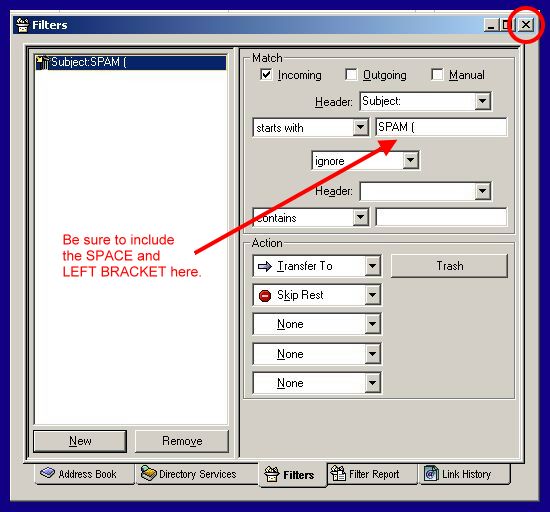
Step 1 Pull down the TOOLS menu.  Click the FILTERS option.
Step 2 Click the NEW button
Step 3 Fill in the form exactly as shown here:
 
Step 4 Click the 'X' in the top right corner of this window, and click YES to save changes.

For Outlook 2002 Users

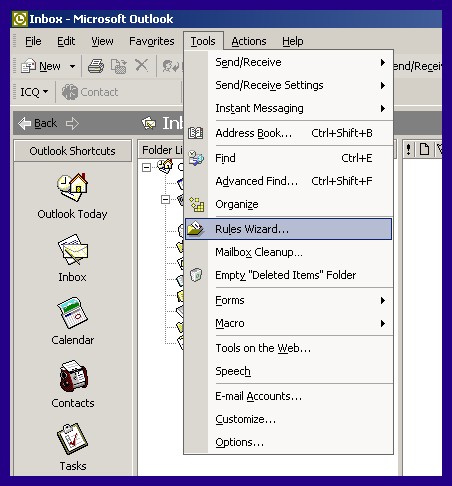
Step 1 Pull down TOOLS and click on RULES WIZARD.
Step 2 Select MOVE MESSAGE BASED ON CONTENT and click NEXT.
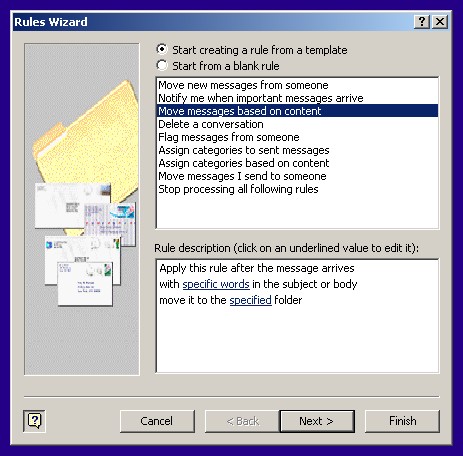
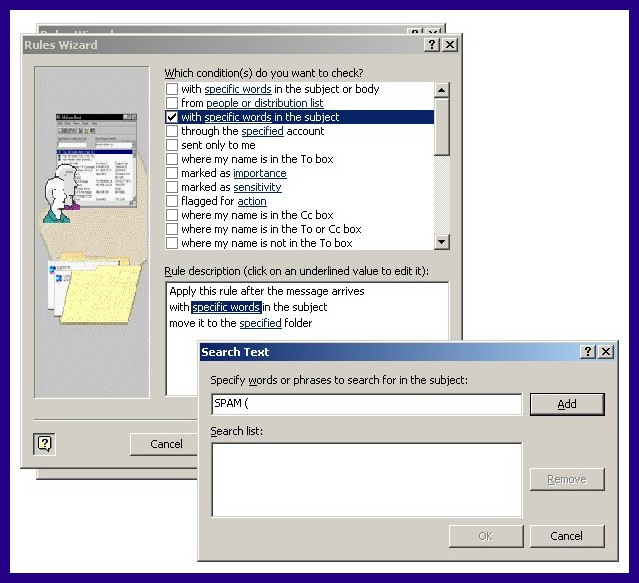
Step 3 Check the box entitled WITH SPECIFIC WORDS IN THE SUBJECT.
Step 4 In the RULE DESCRIPTION box, click on the underlined words SPECIFIC WORDS.  A dialog box titled SEARCH TEXT will pop up. Enter the text "SPAM (" in uppercase and without the quotes, of course.
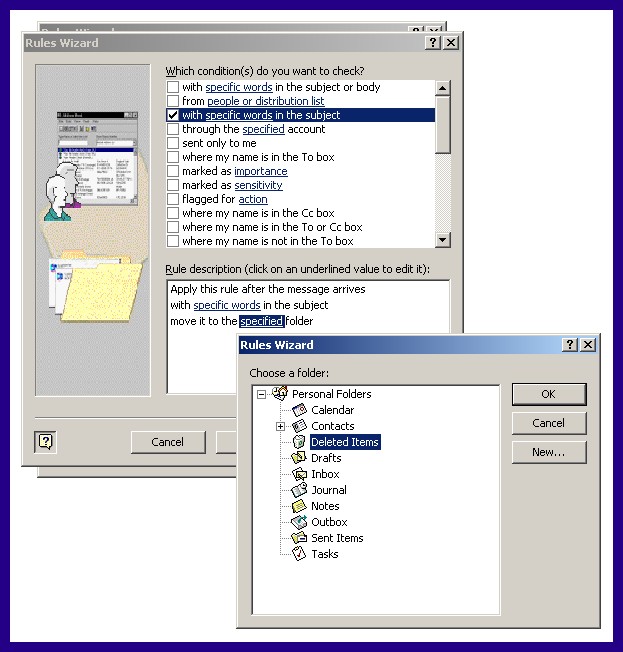
Step 5 In the RULE DESCRIPTION box, click on the underlined word SPECIFIED.  A dialog box titled CHOOSE A FOLDER will pop up. Choose the DELETED ITEMS folder or create a new folder to hold your suspected SPAM emails.
Step 6 Click the NEXT button twice to get to the last setup screen.  Enter a name for this rule:
"RockyMtn Spam Filter".
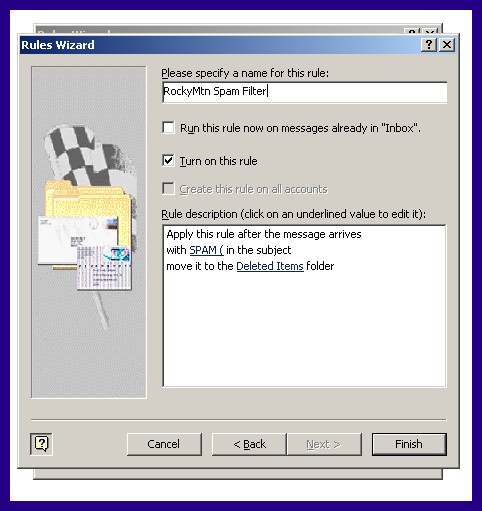
Step 7 Click the FINISH button to return to the RULES WIZARD screen, then press the OK button to exit.

Last modified on Thursday February 22, 2007.  This site is optimized for MS Internet Explorer v6x at 1024 x 768 resolution.
Questions or problems regarding this web site should be directed to .
Copyright © 1997-2007   Rocky Mountain Software Inc.    All rights reserved.